
Zoom Workplace is not packaged in Debian’s default repositories, so the install path matters before you run APT. To install Zoom on Debian, use Zoom’s official .deb package for the vendor-supported desktop client, or use the Flathub package when Flatpak update handling and portal behavior fit your desktop better. Both methods target x86_64 hardware; ARM64 Debian systems should use Zoom in a browser or another supported device unless Zoom publishes a matching Linux package.
Install Zoom on Debian
Start by confirming the CPU architecture and choosing one package source. Debian names the common 64-bit Intel/AMD architecture amd64, while Flatpak and upstream Linux projects often call the same hardware x86_64.
dpkg --print-architecture
uname -m
On a supported 64-bit Intel/AMD Debian desktop, the output should look like this:
amd64
x86_64
If
dpkg --print-architecturereturnsarm64or another architecture, do not install thezoom_amd64.debpackage. The file name is literal: it is built for Debian’samd64architecture.
Choose the Zoom Installation Method
The official .deb package is the best default for most Debian desktop users because it comes directly from Zoom and installs the normal desktop launcher. The Flatpak method is useful when you already manage desktop apps through Flathub, but the current Flathub listing describes itself as a community wrapper that is not verified by or affiliated with Zoom.
| Method | Source or Channel | Update Behavior | Best For | Trade-offs |
|---|---|---|---|---|
| Official .deb Package | Zoom Download Center and Zoom’s latest package redirect | Manual re-download, reinstall, or helper script | Most Debian users who want Zoom’s vendor package and desktop integration | No persistent APT repository is added, so apt upgrade alone does not fetch new Zoom builds |
| Flatpak | Flathub app us.zoom.Zoom | Updated with flatpak update | Users who already use Flatpak or need Flatpak portal behavior on Wayland | Community wrapper, broad device permissions, and a separate Flatpak runtime stack |
Use only one method for daily use. Installing both can leave two Zoom launchers, two update paths, and two separate sets of application data.
Install Zoom with the Official .deb Package
This method downloads Zoom’s current Debian package, lets APT resolve the required libraries, and installs the launcher as /usr/bin/zoom. The package also installs the desktop entry named Zoom Workplace.
Install Download Tools
Refresh APT metadata and install the small tools needed to download the package over HTTPS.
sudo apt update
sudo apt install wget ca-certificates
These commands use
sudofor system package changes. If your account is not configured for sudo, set that up first with how to add a user to sudoers on Debian.
For more download options, such as resuming a partial download, see these wget command examples.
Download the Latest Zoom .deb Package
Download the current package to the working directory as zoom_amd64.deb. Reusing the same file name keeps the later install and update commands predictable.
wget -O zoom_amd64.deb https://zoom.us/client/latest/zoom_amd64.debInspect the Zoom Package Metadata
Check the package name, version, architecture, and installed size before installing it. This is also the fastest way to confirm what the /latest/ redirect served during a rollout.
dpkg-deb -f zoom_amd64.deb Package Version Architecture Installed-SizeExample metadata from a current package:
Package: zoom
Version: 7.0.5.3034
Architecture: amd64
Installed-Size: 960397
The version number changes as Zoom publishes new builds. If the version does not match the Zoom Download Center during a new release rollout, wait and retry the download, or download the Debian package directly from the Download Center page.
Install the Local Zoom .deb Package with APT
Install the downloaded file with APT, not plain dpkg -i. The ./ prefix tells APT to install the local file while still resolving dependencies from your configured Debian package sources.
sudo apt install ./zoom_amd64.debOn Debian 13, the package output can include the AppArmor profile setup for Zoom’s webview helper:
Setting up zoom (7.0.5.3034) ...
run post install script, action is configure...
Installing AppArmor profile to /etc/apparmor.d/zoom
Loading AppArmor profile...
Debian 12 and Debian 11 may not show the AppArmor profile lines because the package only writes that profile when the newer AppArmor ABI file exists on the system.
Verify the Zoom Package and Launcher
Verify the installed package state, launcher symlink, and Zoom version file.
dpkg-query -W -f='${db:Status-Abbrev} ${binary:Package} ${Version} ${Architecture}\n' zoom
readlink -f /usr/bin/zoom
cat /opt/zoom/version.txt
Example output:
ii  zoom 7.0.5.3034 amd64
/opt/zoom/ZoomLauncher
7.0.5.3034
Confirm the desktop entry name and launch command if the application menu has not refreshed yet.
grep -E '^(Name|Exec)=' /usr/share/applications/Zoom.desktopName=Zoom Workplace Exec=/usr/bin/zoom %U
Install Zoom with Flatpak
Use the Flatpak method when you already rely on Flathub or want Flatpak’s portal-based desktop integration. Debian does not install Flatpak by default on many systems, so prepare Flatpak and Flathub before installing the Zoom app ID.
If you want a fuller Flatpak setup path, including desktop-session integration, use Flatpak setup on Debian before returning to the Zoom install commands.
Install Flatpak and Add Flathub
Install Debian’s Flatpak package, then add Flathub as the system-wide remote.
sudo apt update
sudo apt install flatpak
sudo flatpak remote-add --if-not-exists flathub https://dl.flathub.org/repo/flathub.flatpakrepo
Check that Flathub exposes the Zoom app for x86_64 systems before installing it.
flatpak remote-info --arch=x86_64 flathub us.zoom.ZoomThe metadata should identify the app ID and the x86_64 stable ref:
        ID: us.zoom.Zoom
       Ref: app/us.zoom.Zoom/x86_64/stable
      Arch: x86_64
Install the Zoom Flatpak
Install the Zoom Flatpak from Flathub. Flatpak may ask you to confirm the runtime and permission list; review the prompt and accept it to continue.
sudo flatpak install flathub us.zoom.ZoomVerify the Zoom Flatpak
Verify the installed app ID, version, origin, installation scope, and runtime.
flatpak info us.zoom.Zoom | grep -E '^[[:space:]]*(ID|Ref|Arch|Branch|Version|Origin|Installation|Runtime):'Example output from a current Flathub install:
          ID: us.zoom.Zoom
         Ref: app/us.zoom.Zoom/x86_64/stable
        Arch: x86_64
      Branch: stable
     Version: 7.0.0.1666
      Origin: flathub
Installation: system
     Runtime: org.freedesktop.Platform/x86_64/25.08
Flatpak permissions are part of the method choice. The current Zoom Flatpak has network, IPC, X11, Wayland, PulseAudio, device access, permission to create or use ~/Documents/Zoom, and persistent .zoom app data, so do not treat it as a narrow sandbox just because it uses Flatpak.
flatpak info --show-permissions us.zoom.Zoom | sed -n '1,20p'[Context] shared=network;ipc; sockets=x11;wayland;pulseaudio; devices=all; filesystems=xdg-documents/Zoom:create; persistent=.zoom;
Launch and Start Using Zoom on Debian
After installation, launch the same package source you chose during setup. The official .deb package and the Flatpak app use different commands.
Launch Zoom from the Terminal
For the official .deb package, run:
zoomFor the Flatpak package, run:
flatpak run us.zoom.ZoomLaunch Zoom from the Applications Menu
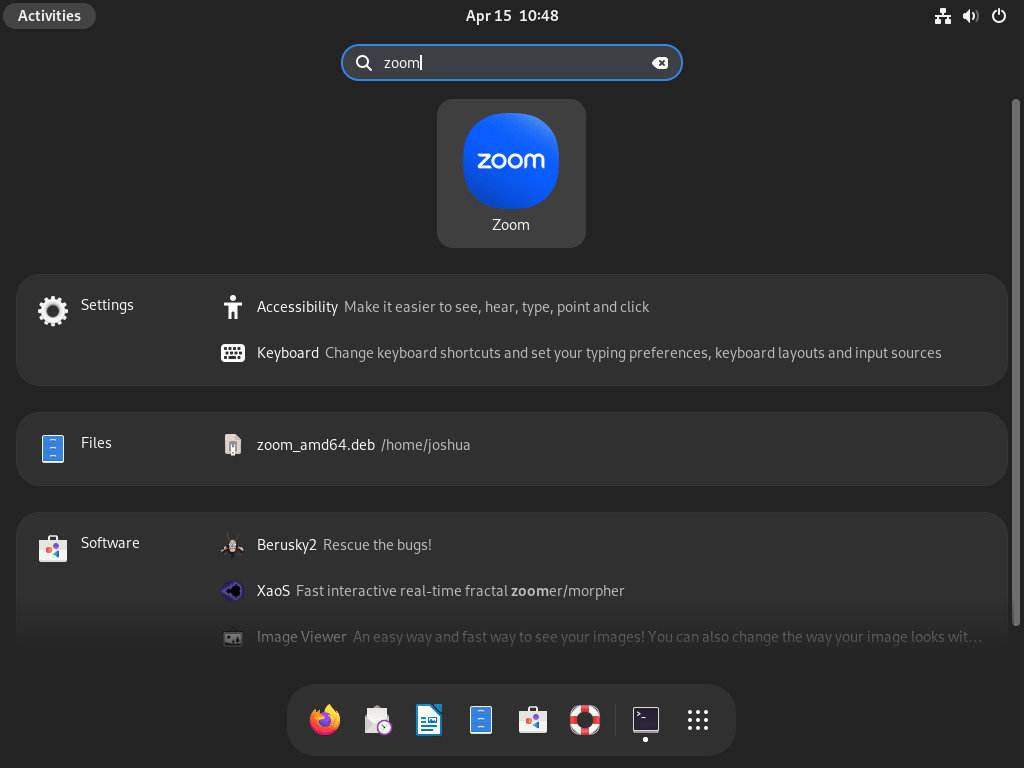
Debian GNOME users can open Activities, search for Zoom, and select Zoom Workplace. Other desktop environments may place the launcher under Internet, Network, or a similar application category.
- Open the applications menu or Activities overview.
- Search for Zoom or Zoom Workplace.
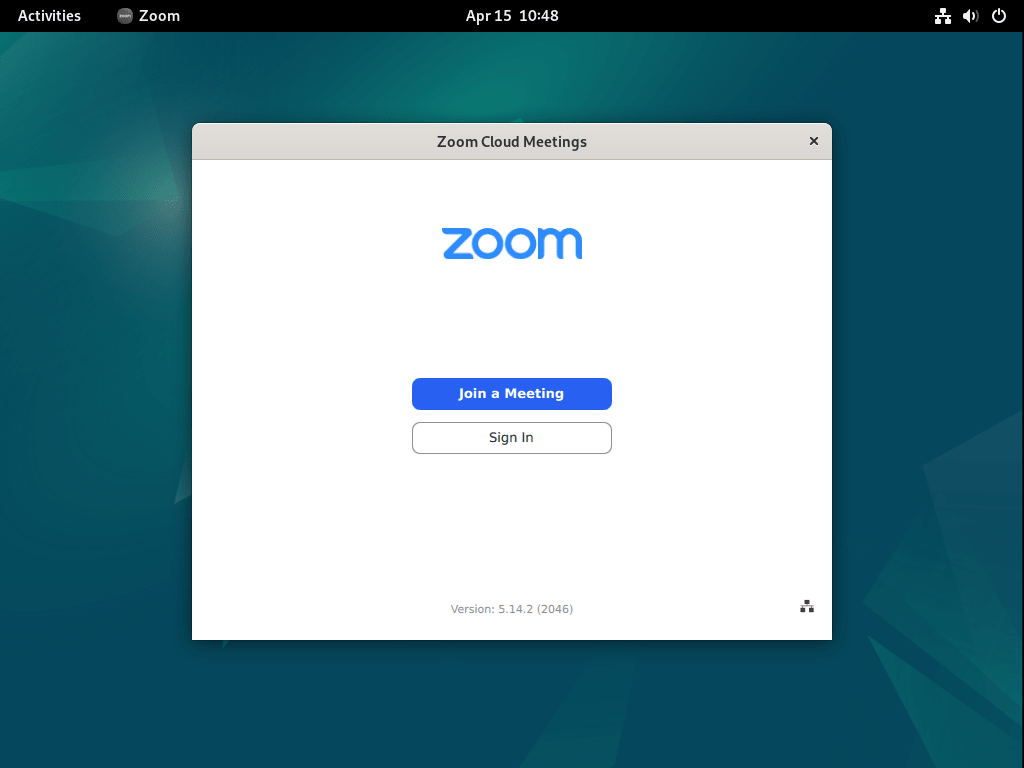
- Open Zoom, sign in if needed, or join a meeting from a meeting link.
Check Audio, Video, and Meeting Links
Open Zoom settings before the first meeting and check the microphone, speaker, and camera devices. If you joined from a browser link, Debian should hand zoommtg:// links to the desktop client after the official package installs its MIME handlers. For Flatpak installs, open Zoom once from the desktop launcher first; if a browser still keeps the meeting in the web client, join from Zoom with the meeting ID or use the browser’s prompt to open the desktop app.
Manage Zoom on Debian
Update Zoom on Debian
Use the update path that matches your installation method. The official .deb package does not add a persistent APT repository on Debian, while the Flatpak method updates through Flathub.
Update the Official Zoom .deb Package
Download the current package, inspect the version, and install it over the existing package.
wget -O zoom_amd64.deb https://zoom.us/client/latest/zoom_amd64.deb
dpkg-deb -f zoom_amd64.deb Package Version Architecture
sudo apt install ./zoom_amd64.deb
If APT reports that zoom is already the newest version, the downloaded package matches the installed package. If the Download Center shows a newer release than the /latest/ URL served, wait for Zoom’s CDN to refresh or download from the Download Center page.
Use a Repeatable Zoom .deb Update Script
A helper script is useful when you manage the official .deb package long-term. The script checks the Debian architecture, downloads into a temporary directory, prints the package version, installs with APT, and removes the temporary file automatically.
nano ~/update-zoom-debian.shPaste the script:
#!/usr/bin/env bash
set -euo pipefail

if [ "$(id -u)" -eq 0 ]; then
    printf '%s\n' "Run this script as your normal user, not root."
    exit 1
fi

arch="$(dpkg --print-architecture)"
if [ "$arch" != "amd64" ]; then
    printf 'Zoom publishes the Debian package for amd64 systems. Detected: %s\n' "$arch"
    exit 1
fi

url="https://zoom.us/client/latest/zoom_amd64.deb"
work_dir="$(mktemp -d)"
deb_file="$work_dir/zoom_amd64.deb"
trap 'rm -rf "$work_dir"' EXIT

printf '%s\n' "Downloading the latest Zoom package..."
wget -O "$deb_file" "$url"

printf 'Package version: '
dpkg-deb -f "$deb_file" Version

printf '%s\n' "Installing or updating Zoom..."
sudo apt-get install -y "$deb_file"

printf 'Installed package: '
dpkg-query -W -f='${binary:Package} ${Version} ${Architecture}\n' zoom
Make the script executable and run it from your normal user account.
chmod +x ~/update-zoom-debian.sh
~/update-zoom-debian.sh
Example output begins with the resolved package version and ends with the installed package record:
Downloading the latest Zoom package...
Package version: 7.0.5.3034
Installing or updating Zoom...
Installed package: zoom 7.0.5.3034 amd64
Keep the helper if you plan to reuse it for later Zoom updates. Remove the helper script when you prefer manual updates only.
rm -f ~/update-zoom-debian.shUpdate the Zoom Flatpak
Update only the Zoom Flatpak app when you want a focused refresh, or update all Flatpak apps and runtimes when you are doing routine Flatpak maintenance.
sudo flatpak update us.zoom.ZoomTo update all system-wide Flatpak apps and runtimes, run:
sudo flatpak updateRemove Zoom from Debian
Remove the package source you installed. Package removal does not remove every per-user setting, saved login state, or local recording directory, so handle user data separately.
Remove the Official Zoom .deb Package
Purge the Debian package when you want to remove package-owned configuration files as well as the application files. On Debian 13, this also removes the package-owned Zoom AppArmor profile when the profile was created by the Zoom package.
sudo apt purge zoomAfter the package is removed, review APT’s dependency cleanup list before accepting autoremoval.
sudo apt autoremoveVerify that the package is no longer installed:
dpkg-query -W -f='${db:Status-Abbrev} ${binary:Package}\n' zoom 2>/dev/null || echo "zoom is not installed"zoom is not installed
Remove the Zoom Flatpak
Uninstall the Flathub app and delete its Flatpak-managed app data.
sudo flatpak uninstall --delete-data us.zoom.ZoomVerify that the system-wide Flatpak app ID is gone:
flatpak list --system --app --columns=application | grep -Fx us.zoom.Zoom || echo "NOT_INSTALLED"NOT_INSTALLED
Remove Zoom User Data (Optional)
The next cleanup removes Zoom settings and cached account state from your home directory. It does not delete local recordings in
~/Documents/Zoom/; back up or remove recordings separately based on what you want to keep.
List the user-data paths first so you can see what exists.
for path in "$HOME/.zoom" "$HOME/.config/zoomus.conf"; do
    [ -e "$path" ] && printf '%s\n' "$path"
done
Remove those paths only when you no longer need the saved settings or login state.
rm -rf "$HOME/.zoom" "$HOME/.config/zoomus.conf"Troubleshoot Zoom on Debian
Fix apt install zoom Failures on Debian
sudo apt install zoom fails on a clean Debian system because Debian does not provide a default repository package named zoom. Download zoom_amd64.deb first, then install that local file with sudo apt install ./zoom_amd64.deb.
Fix a Broken Zoom .deb Install
If a package install was interrupted, or if you used dpkg -i and left unresolved dependencies behind, let APT repair the dependency state before reinstalling the local package.
sudo apt --fix-broken install
sudo apt install ./zoom_amd64.deb
Older errors about libxcb-xtest0, libxcb-cursor0, or Mesa libraries usually mean APT did not finish resolving dependencies. Installing with APT from the local file fixes that path more cleanly than manually chasing each dependency.
Check a Zoom Latest Download That Looks Stale
Zoom’s /latest/ package URL can lag behind the Download Center during staged rollouts or CDN cache windows. Check the package version before installing if you are waiting for a specific release.
dpkg-deb -f zoom_amd64.deb VersionIf the package version is older than the Download Center version, retry later or download the Debian package from the Download Center page in your browser.
Fix Zoom Camera Detection on Debian
Check whether Debian sees a video device before changing Zoom settings.
find /dev -maxdepth 1 -name 'video*' -printA normal webcam usually appears as /dev/video0 or a nearby number. If no device appears, reconnect the camera, try another USB port, and check whether another application already owns the webcam.
Fix Zoom Microphone Issues on Debian
If other participants cannot hear you, Debian may be using the wrong input source or a muted microphone. PulseAudio Volume Control gives a clear view of input devices and active recording streams.
sudo apt install pavucontrol
pavucontrol
Open Input Devices to select the correct microphone, then open Recording while Zoom is in a meeting or test call to confirm Zoom is attached to the expected input device.
Improve Zoom Screen Sharing on Debian Wayland
Debian GNOME uses Wayland by default, and screen sharing depends on PipeWire plus the correct xdg-desktop-portal backend. Install the portal package that matches your desktop environment, then log out and sign back in so the session picks it up.
For GNOME on Debian 13 or Debian 12, install:
sudo apt install pipewire xdg-desktop-portal xdg-desktop-portal-gnomeFor GNOME on Debian 11, or for GTK-based desktops that use the GTK portal backend, install:
sudo apt install pipewire xdg-desktop-portal xdg-desktop-portal-gtkFor KDE Plasma, install:
sudo apt install pipewire xdg-desktop-portal xdg-desktop-portal-kdeIn the Zoom app, open Settings, go to Share Screen, open Advanced, and set the Wayland screen capture mode to PipeWire mode when that option is available. If full-desktop sharing remains unreliable, use an Xorg session as a fallback for meetings where full-screen sharing is required.
On Debian 13 GNOME systems where the Xorg session is missing from the login screen gear menu, install the Xorg session package, log out, and select the Xorg session before signing in again.
sudo apt install gnome-session-xsessionUnderstand the Zoom AppArmor Message on Debian 13
The current Zoom .deb package writes /etc/apparmor.d/zoom on Debian systems that provide the AppArmor ABI file it expects. On Debian 13, the package loads a profile for /opt/zoom/ZoomWebviewHost and includes userns for the helper process. Debian 12 and Debian 11 may install Zoom without creating that profile.
Do not disable AppArmor globally for Zoom. If you suspect AppArmor is blocking a specific action, check for fresh Zoom-related denial messages first.
sudo journalctl -k --no-pager | grep -i 'apparmor.*zoom'No matching denial output usually means the problem is elsewhere, such as portal setup, device selection, package dependencies, or desktop-session behavior.
Conclusion
Zoom Workplace is installed on Debian through either Zoom’s official .deb package or the Flathub app, with the update and removal path tied to the method you chose. For adjacent desktop communication tools, Debian users can also compare installing Slack on Debian, installing Discord on Debian, or installing TeamViewer on Debian.


I’ve downloaded the deb version with the link for the latest one, but it still downloads a previous version. I’ve downloaded the latest version from the official site.
Thanks for mentioning this, caco. You are right that Zoom’s “latest” URL can sometimes serve an older cached version during rollout periods. Their CDN does not always update instantly when new versions release. If you need to verify you have the newest version, the Zoom Download Center page shows the current version number before you download.
Alternatively, after downloading, you can check the package version without installing:
If it does not match the version shown on the download page, try again later or download directly from the website as you did.
Thanks for the tuto,
Do you know how to enable screen sharing on zoom installed through flatpak?
Thanks for the question, Mabrada. Screen sharing on Flatpak Zoom requires a couple of adjustments, especially on Wayland systems.
First, open Zoom settings, go to Share Screen, then Advanced, and change “Screen capture mode on Wayland” from “Auto Mode” to Pipewire Mode.
Second, ensure the required PipeWire and xdg-desktop-portal packages are installed for your desktop environment:
The xdg-desktop-portal service handles the secure screen capture dialog on Wayland and communicates with PipeWire to stream the content. Without the correct portal backend for your desktop environment, Zoom cannot access screen sharing permissions.
If screen sharing still fails after these changes, you can also adjust Flatpak permissions using Flatseal. Install it with
flatpak install flathub com.github.tchx84.Flatseal, open the Zoom entry, and ensure D-Bus session bus access is enabled.Very good!
I always turn to this site to solve little issues.
Thanks, guys, for your great contribution.
Cheers! 😊