
When the classic top view feels too cramped, htop gives Fedora users a cleaner terminal dashboard for CPU load, memory pressure, process trees, search, filtering, and process signals. To install htop on Fedora, use the htop package from Fedora’s default repositories, which keeps updates and removal under DNF.
Current Fedora releases package htop directly, but the command is not safe to assume on every Workstation, Server, or minimal install. If htop --version is missing, install the Fedora RPM first, then use the shortcuts and startup options for day-to-day process checks.
Install Htop on Fedora
DNF installs htop from Fedora’s enabled default repositories and resolves its runtime libraries automatically. If htop already prints a version on your system, skip the install command and continue with the usage examples.
Update Fedora Packages Before Installing Htop
Refresh DNF metadata and apply pending updates before installing the package:
sudo dnf upgrade --refreshThe --refresh flag makes DNF check current repository metadata before it calculates updates. If DNF downloads feel slow, the Fedora guide to increase DNF download speeds explains parallel downloads and mirror selection.
Install Htop with DNF
Install the Fedora htop package with DNF:
sudo dnf install htopReview the package list before confirming the transaction. On a clean Fedora system, DNF may add a small supporting library package along with htop.
Verify Htop on Fedora
Check that the installed binary responds from your shell:
htop --versionCurrent Fedora packages return output like this, though the version can change after Fedora ships an update:
htop 3.4.1
Start and Use Htop on Fedora
Launch Htop from the Terminal
Start htop from any terminal session:
htopHtop opens an interactive full-screen process view instead of printing normal command output. Press F10 or q to exit.
Essential Htop Keyboard Shortcuts
Use these shortcuts for the most common monitoring and process-management tasks:
| Shortcut | What It Does |
|---|---|
Up, Down, Page Up, Page Down | Moves through the process list. |
Left and Right | Scrolls horizontally when columns extend past the terminal width. |
Space | Tags or untags a process so actions such as kill apply to the tagged group. |
F1, h, or ? | Opens htop’s built-in help screen. |
F2 or S | Opens setup for meters, columns, display options, and color schemes. |
F3 or / | Searches process command lines and cycles through matches. |
F4 or \ | Filters the visible process list by command-line text. |
F5 or t | Toggles tree view for parent and child process relationships. |
F6, <, or > | Selects the active sort field. |
Shift+P, Shift+M, or Shift+T | Sorts by CPU usage, memory usage, or accumulated time. |
F7 or F8 | Adjusts process nice priority; raising priority requires elevated privileges. |
F9 or k | Opens the signal menu to terminate the selected or tagged process. |
F10 or q | Quits htop and returns to the shell. |
Htop can also call helper tools for deeper diagnostics. Install lsof and strace only if you want the in-htop open-file view and system-call tracing shortcuts:
sudo dnf install lsof straceHtop Command-Line Options on Fedora
Startup options let htop open in the view you need instead of changing the layout after launch. Fedora’s htop package supports sorting, user filtering, command filtering, tree view, PID selection, and read-only mode through htop --help.
Sort Htop by CPU Usage
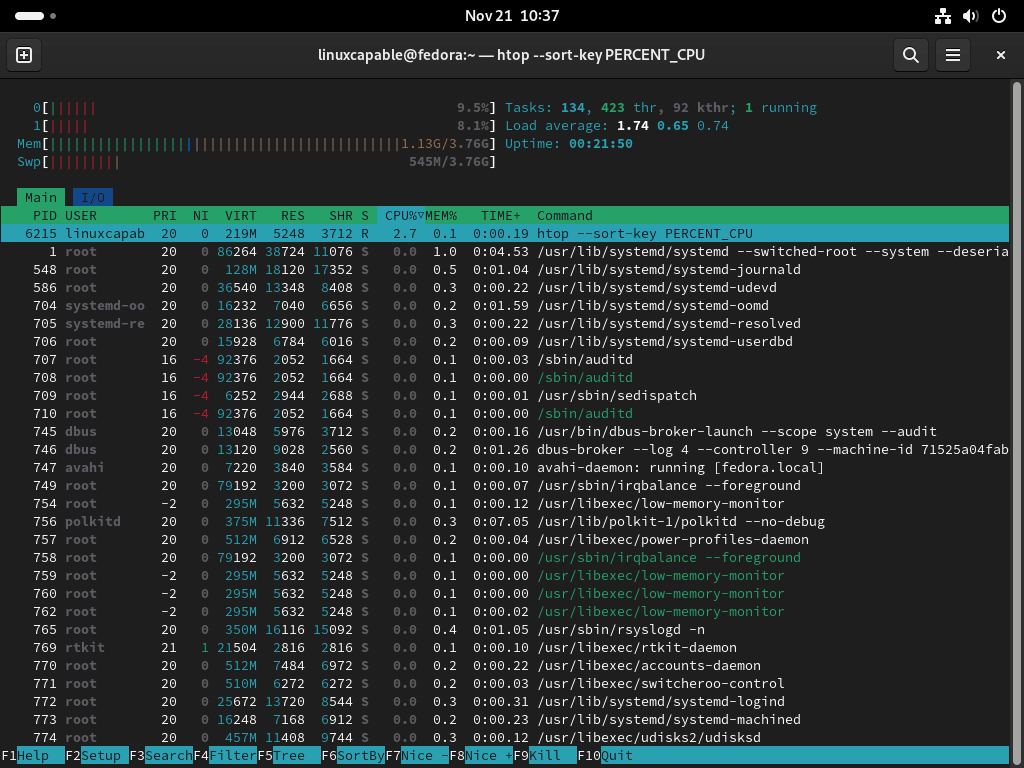
Open htop with CPU usage as the active sort column:
htop --sort-key PERCENT_CPUThis view puts CPU-heavy processes near the top of the list immediately after htop starts.
Show Processes for One User
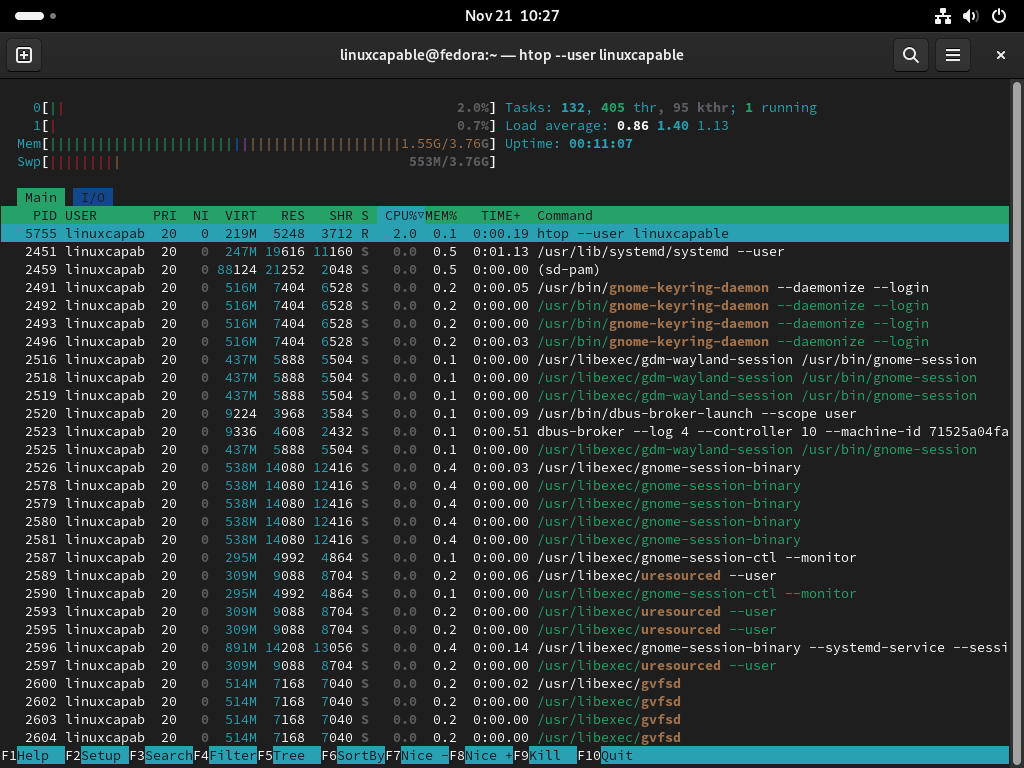
Limit the process list to the account you are logged in as:
htop --user "$USER"Replace "$USER" with another username or UID when you need to focus on a different account.
Filter Htop by Command Name
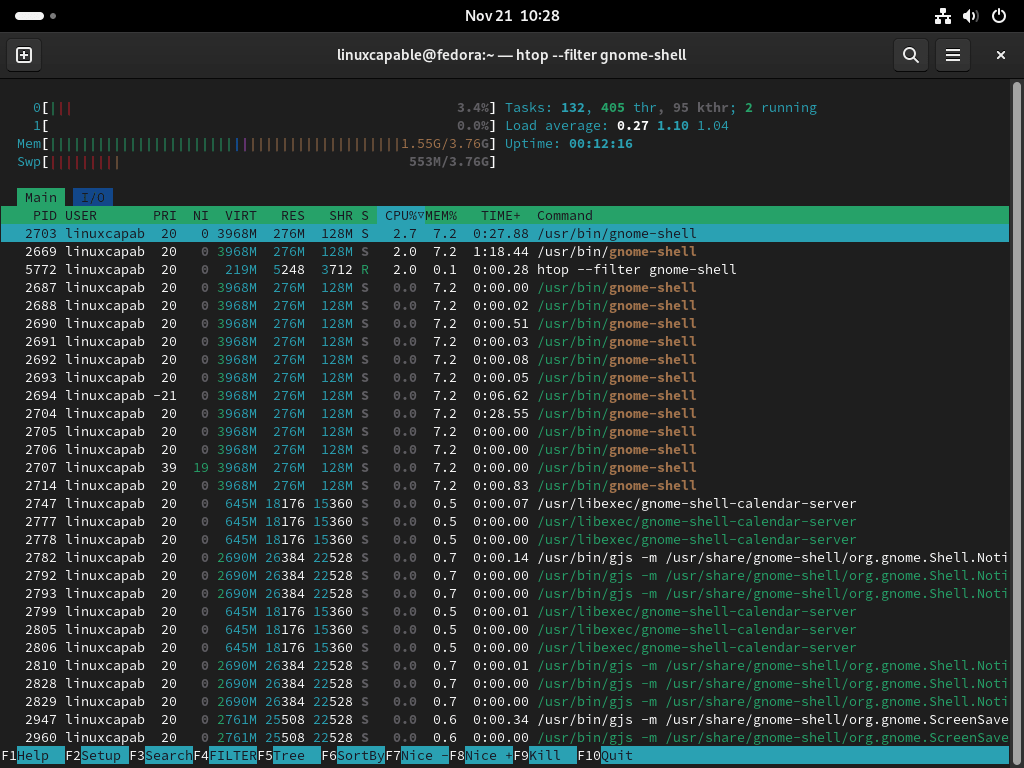
Filter visible processes by command-line text. On Fedora Workstation, this example focuses on GNOME Shell processes:
htop --filter gnome-shellThe filter uses case-insensitive fixed-string matching, not regular expressions. Replace gnome-shell with the process name or command text you want to inspect.
Start Htop in Tree View
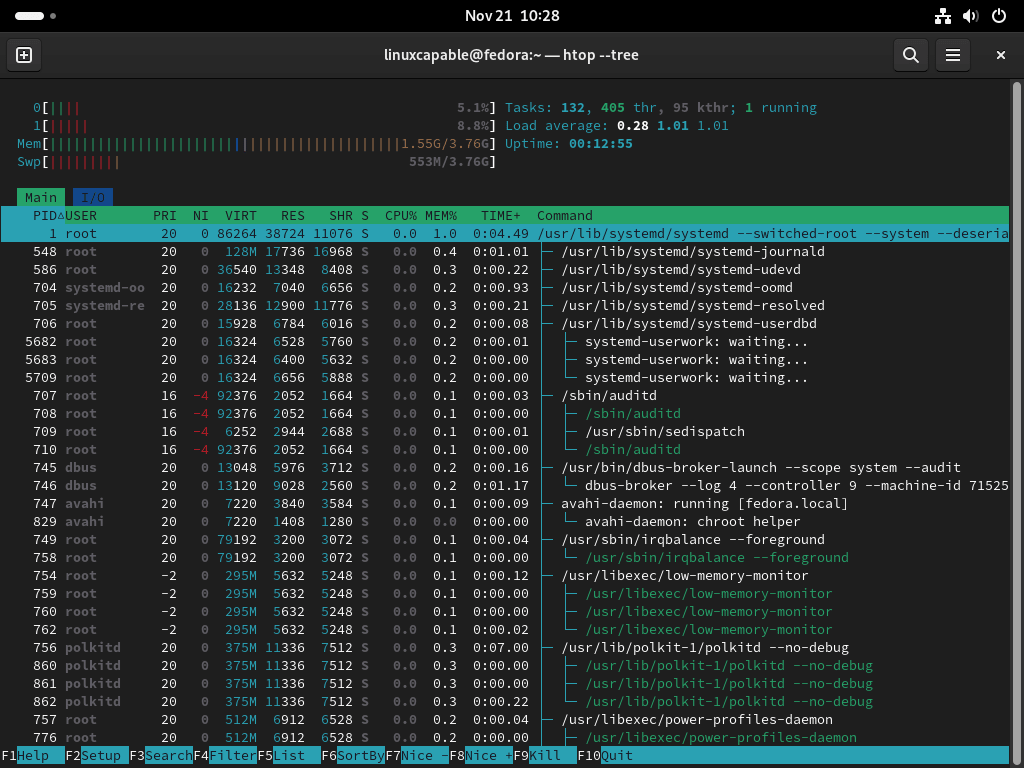
Open htop with parent and child process relationships visible from the start:
htop --treeTree view helps explain why background helper processes exist because you can see which parent process launched them.
Sort Htop by Process State
Use the STATE sort key when you want running, sleeping, stopped, and zombie processes grouped by state:
htop --sort-key STATEThis sorts by process state rather than hiding other states. Use F4 or --filter for command-name filtering.
Troubleshoot Htop on Fedora
Most htop problems come from a missing package, process permissions, optional helper tools, or an active filter that hides expected processes.
Htop Command Not Found
If Fedora cannot find the command, Bash prints an error like this:
bash: htop: command not found
Install the package from Fedora’s default repositories:
sudo dnf install htopThen verify the command again with htop --version.
Cannot Kill or Renice Processes
Without elevated privileges, htop can only signal or renice processes owned by your user account. Quit htop and reopen it with sudo when you need to manage system-owned processes:
sudo htopUse elevated htop carefully because F9 can send signals to critical system services.
Helper Shortcuts Do Not Open
The l open-file shortcut needs lsof, and the s system-call tracing shortcut needs strace. Add those optional helper packages if htop reports that the helper command is missing:
sudo dnf install lsof straceCPU Percentages Exceed 100 Percent
Htop can show process CPU usage against one CPU, so a multi-threaded process may exceed 100 percent on multicore systems. For normalized CPU sorting, start htop with the normalized CPU sort key:
htop --sort-key PERCENT_NORM_CPUProcess List Looks Empty or Filtered
If htop shows fewer processes than expected, clear any active text filter with F4, then press Esc. Use K to toggle kernel threads and H to toggle user threads when thread visibility is the issue.
Update or Remove Htop on Fedora
Update Htop with DNF
Htop receives updates through the same Fedora repositories that installed it. Upgrade just htop when you want a targeted package refresh:
sudo dnf upgrade --refresh htopFor unattended maintenance across the whole system, Fedora’s DNF5 automatic update timer can handle scheduled upgrade checks.
Remove Htop with DNF
Remove htop with DNF when you no longer need the process viewer:
sudo dnf remove htopDNF may also remove libraries that were installed only for htop. Confirm the package is gone with RPM:
rpm -q htopA removed package returns:
package htop is not installed
If you installed lsof or strace only for htop diagnostics and do not use them elsewhere, remove those optional helper tools separately:
sudo dnf remove lsof straceConclusion
Htop is available on Fedora as a DNF-managed process monitor, with search, tree view, sorting, filtering, and signal controls ready from the terminal. Keep it current through normal Fedora package updates, and use the troubleshooting checks above when permissions, filters, or optional helper tools affect what htop can show.


Formatting tips for your comment
You can use basic HTML to format your comment. Useful tags currently allowed in published comments:
<code>command</code>command<strong>bold</strong><em>italic</em><a href="https://example.com">link</a><blockquote>quote</blockquote>